How to Convert PDF to JPG (Turn Pages Into Images)
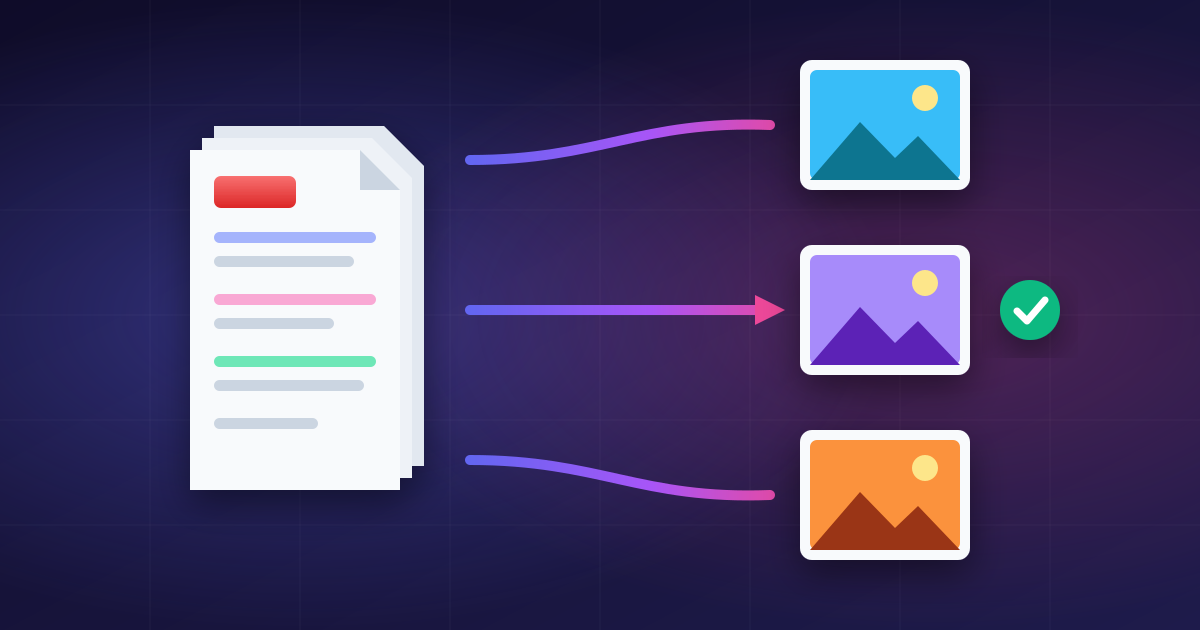
You made a nice flyer and saved it as a PDF. Then you try to post it on Instagram or add it to a WhatsApp status, and it simply won’t go. The app wants a picture, not a PDF.
The fix is to convert the PDF to JPG. Each page becomes a normal image that any phone, app or website can open. It takes about a minute, it is free, and you don’t need to install anything.
What is the difference between a PDF and a JPG?
A PDF is like a little booklet. It can hold many pages, text you can select and links. A JPG is like a single photo. It is just one picture, but almost everything can show it.
Converting PDF to JPG is like taking a clear photo of each page. You lose the selectable text, but you get an image that works everywhere.
How to convert PDF to JPG online (the fastest way)
- 1. Open the free Utified PDF to JPG tool in your browser.
- 2. Drag your PDF into the box, or click it and choose the file.
- 3. Click “Convert to JPG” and wait a few seconds.
- 4. Click the green download button.
- 5. If your PDF has one page, you get one JPG. If it has more pages, you get a ZIP with one JPG per page, named page_1, page_2 and so on.
Your PDF stays on your device
The Utified PDF to JPG tool turns your pages into images inside your browser. Your file is not uploaded to our servers, so it is fine for private papers too.
A ZIP is simply a folder packed into one download. On most computers you just double-click it to open it. On an iPhone, tap it in the Files app. On Android, open it in your Files app.
How to save a PDF as a JPG on a Mac
Open the PDF in Preview. Click File, then Export. Next to Format, choose JPEG and move the Quality slider to the right for a sharper image. Click Save. Preview saves the page you are looking at, so repeat this for each page you need.
How to turn a PDF page into a picture on Windows
Windows has no built-in “save as JPG” for PDFs, but there is a quick trick. Open the PDF and zoom so the page fills the screen. Press Windows key + Shift + S and drag a box around the page. Open the Snipping Tool notification, then save the picture. This is fine for one page, but the online tool is faster for many pages.
Converting PDF to JPG on your phone
Open the PDF to JPG tool in your phone’s browser, pick the PDF from your files and download the result. You can also just take a screenshot of the page, but the picture will include your screen’s edges and may look less sharp.
Tips if something goes wrong
- The image looks a bit blurry? Zoom in less when you view it, or use PDF to PNG, which keeps sharper edges on text and lines.
- The file is too big to upload? Run the JPG through an image compressor to make it smaller.
- You only need one page? Split that page out of the PDF first, then convert it.
- The PDF won’t open? It may be locked with a password. Unlock it first, then convert it.
- Very large PDF is slow? Big files with many pages take longer, because your device draws every page. Give it a moment.
Quick answers
Is it free to convert PDF to JPG? Yes. The Utified PDF to JPG tool is free and adds no watermark to your images.
Can I convert every page of a PDF to JPG at once? Yes. Upload the whole PDF and you get a ZIP with one JPG for each page.
Should I choose JPG or PNG? JPG makes smaller files and is great for photos and flyers. PNG is better for pages with lots of small text or sharp lines.
Can I turn the JPG back into a PDF? Yes. Use a JPG to PDF tool. But the text will be a picture, so you won’t be able to select or edit it.
Need your PDF as pictures? Convert PDF to JPG in seconds, free and private.
Open PDF to JPGTry it yourself