How to Convert a PDF to Word So You Can Edit It (Free)
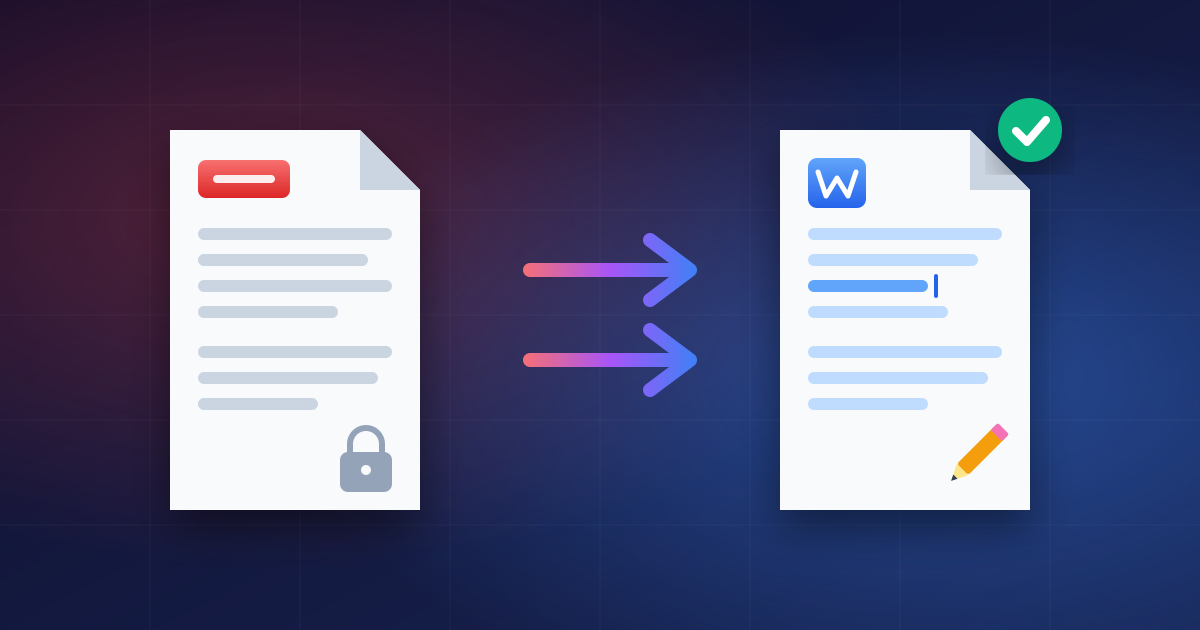
Someone sends you a PDF and says, “Can you just fix the date and send it back?” You open it, click on the text, and nothing happens. You can read it, but you can’t change a thing.
That is how PDFs are made. They are like a photo of a page: great for sharing, hard to edit. The easy fix is to turn the PDF into a Word document. Then you can type, delete and change anything you like. Here is how to do it, step by step.
Why can’t I just edit a PDF?
A PDF is built to look exactly the same on every phone, laptop and printer. To do that, it locks every word and picture in place. That is perfect for a final copy, like a bill or a contract. But it means there is no simple “type here” box.
A Word file is the opposite. It is made for writing and changing. So when you convert a PDF to Word, you are turning the locked page back into something you can work on.
How to convert a PDF to Word online (fastest way)
This works on any computer, tablet or phone, and you do not need to install anything.
- 1. Open the Utified PDF to Word converter in your browser.
- 2. Choose your PDF file.
- 3. Click Convert and wait a few seconds.
- 4. Download your new Word file (it ends in .docx).
- 5. Open it in Microsoft Word, Google Docs or any word app, and start editing.
What happens to your file
Turning a PDF into Word needs a proper document engine, so this conversion runs on Utified’s servers. Your file is used only for the conversion and is deleted automatically afterwards. You can read exactly how long we keep files in our privacy policy.
How to convert a PDF to Word inside Microsoft Word
If you have Microsoft Word on your computer, it can do this on its own. Open Word, click File, then Open, and pick your PDF. Word will show a message saying it will convert the PDF into an editable document. Click OK. Simple documents come out well. Pages with lots of columns, tables or pictures may need some tidying up.
How to convert a PDF to Word with Google Docs (free)
Have a Google account? Upload your PDF to Google Drive. Then right-click the file, choose “Open with” and pick Google Docs. Google turns it into a document you can edit. When you are done, click File, then Download, then “Microsoft Word (.docx)”. This works best for text-heavy files. Fancy layouts often lose their design.
What if my PDF is a scan or a photo?
If you scanned a paper or took a photo of it, your PDF does not really have words inside. It has a picture of words. A normal converter will give you a Word file with an image in it, not text you can edit.
The fix is a step called OCR, which stands for “optical character recognition”. It simply means the computer reads the picture and types out the words for you. Run your scan through a PDF OCR tool first, then convert it to Word.
My Word file looks messy. How do I fix it?
- Text in odd boxes? Click inside, select all the text, and copy it into a fresh, plain document.
- Wrong font? Select everything (Ctrl + A, or Cmd + A on a Mac) and choose one font for the whole page.
- Lines breaking in strange places? Use Find and Replace to remove extra line breaks.
- Tables look broken? Copy the numbers into a new table you make in Word.
- Only need a few words changed? Sometimes it is faster to edit the PDF directly with a PDF editor.
Quick answers
Is it free to convert a PDF to Word? You can try Utified’s PDF to Word converter without paying. Free accounts get monthly credits for document conversions. Google Docs is another free option if you have a Google account.
Will my formatting stay the same? Simple documents with normal text keep their look very well. Complex layouts with many columns, tables or pictures may shift a little and need some tidying.
Can I convert a PDF to Word on my phone? Yes. Open the converter in your phone’s browser, pick the PDF from your phone, and download the Word file.
How do I turn the Word file back into a PDF? Once you finish editing, use a Word to PDF converter, or in Word click File, then Save As, and choose PDF.
Need to edit a PDF? Turn it into a Word document in a few seconds.
Open PDF to WordTry it yourself