How to Merge PDF Files Into One (Free and Easy)
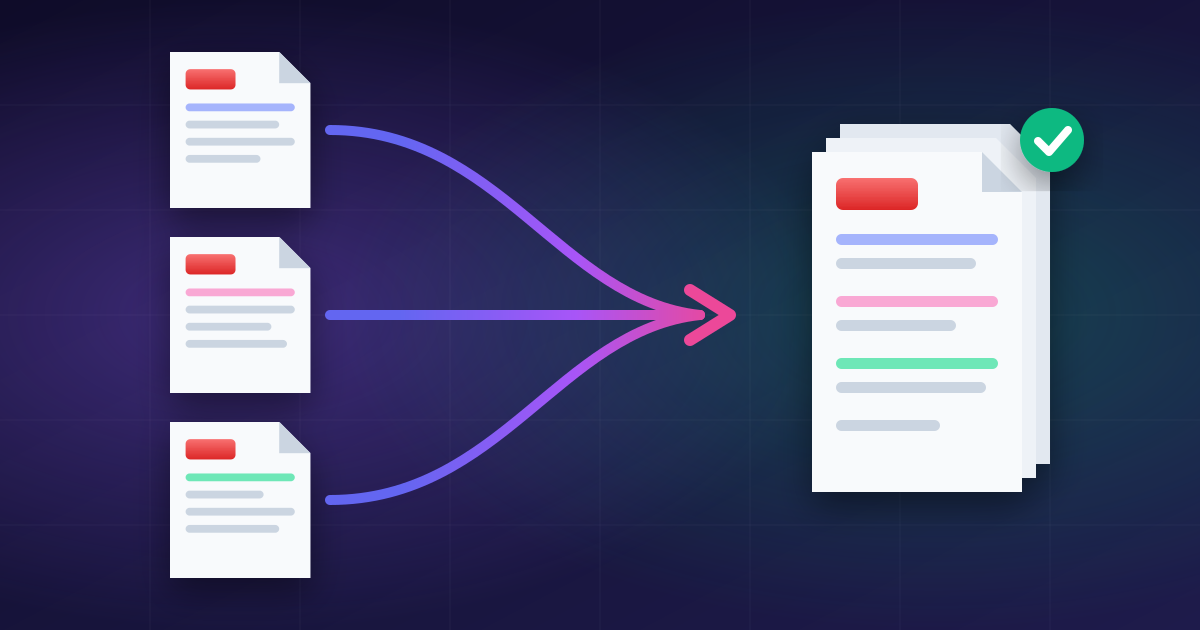
You are applying for a job, a visa or a loan. You have your CV, your ID, two certificates and a bank statement, all as separate PDFs. Then the website says: “Upload one file only.”
Don’t worry. You don’t need to start again. You can join all those PDFs into one single file in less than a minute, for free. This guide shows you exactly how, step by step.
What does “merging PDFs” mean?
Merging (or combining) PDFs simply means sticking several PDF files together, one after another, so they become one file. Think of it like stapling papers together. Every page stays exactly the same. You just have one neat bundle instead of many loose sheets.
How to merge PDFs online (the fastest way)
This works on any computer, tablet or phone, and you don’t need to install anything.
- 1. Open the free Utified Merge PDF tool in your browser.
- 2. Add all the PDF files you want to join.
- 3. Put them in the right order. Use the up and down arrows to move a file, or remove one you added by mistake.
- 4. Click Merge and wait a moment.
- 5. Download your new single PDF. That’s it!
Your files stay on your device
The Utified Merge PDF tool works inside your browser. Your PDFs are not uploaded anywhere, so it is safe to use for ID cards, bank statements and other private papers.
How to merge PDFs on a Mac (built-in)
Every Mac can do this with the free Preview app. Open your first PDF in Preview. Click View, then Thumbnails, so you can see the pages on the side. Now drag your other PDF files into that side bar, right where you want them to go. When everything is in place, click File, then Export as PDF, and save.
How to merge PDFs on an iPhone or iPad
Open the Files app and find your PDFs. Tap the three dots at the top, then tap Select, and choose all the files you want to join. Tap the three dots at the bottom and choose Create PDF. A new combined PDF appears in the same folder. The files are joined in the order they are listed, so rename or sort them first if the order matters.
What about photos and scans?
Many people need to add a photo of a document, like a picture of an ID card taken on a phone. A photo is not a PDF yet, so first turn it into one with an Image to PDF tool. Then merge it with your other PDFs as normal.
Tips to get it right the first time
- Name your files with numbers first, like “1-CV”, “2-ID”, “3-Certificate”. It makes the order easy to see.
- Check the order before you merge. It is much easier than fixing it later.
- Need to move single pages around after merging? Use a PDF organizer to drag pages into place.
- Is the final file too big for the upload form? Compress the merged PDF to make it smaller.
- Keep your original files until you have checked the merged one.
Why won’t my PDFs merge?
The most common reason is a password. Some PDFs, like bank statements, are locked with a password, and a locked file can’t be joined with others. If you know the password, unlock the PDF first, then try merging again. If a file still won’t work, it may be damaged. Try downloading it again from where you got it.
Quick answers
Is it free to merge PDF files? Yes. The Utified Merge PDF tool is free, adds no watermark and doesn’t ask you to sign up.
Will merging lower the quality? No. Merging only joins the pages together. Every page looks exactly the same as before.
How many PDFs can I merge at once? You can add as many files as you need. Very large files may take a little longer, because your own device does the work.
Can I merge PDFs on Windows without installing anything? Yes. Windows has no built-in way to merge PDFs, but an online tool like Utified’s works right in your browser.
Have a pile of PDFs to send? Join them into one file in seconds, free and private.
Open Merge PDFTry it yourself