How to Split a PDF Into Separate Pages
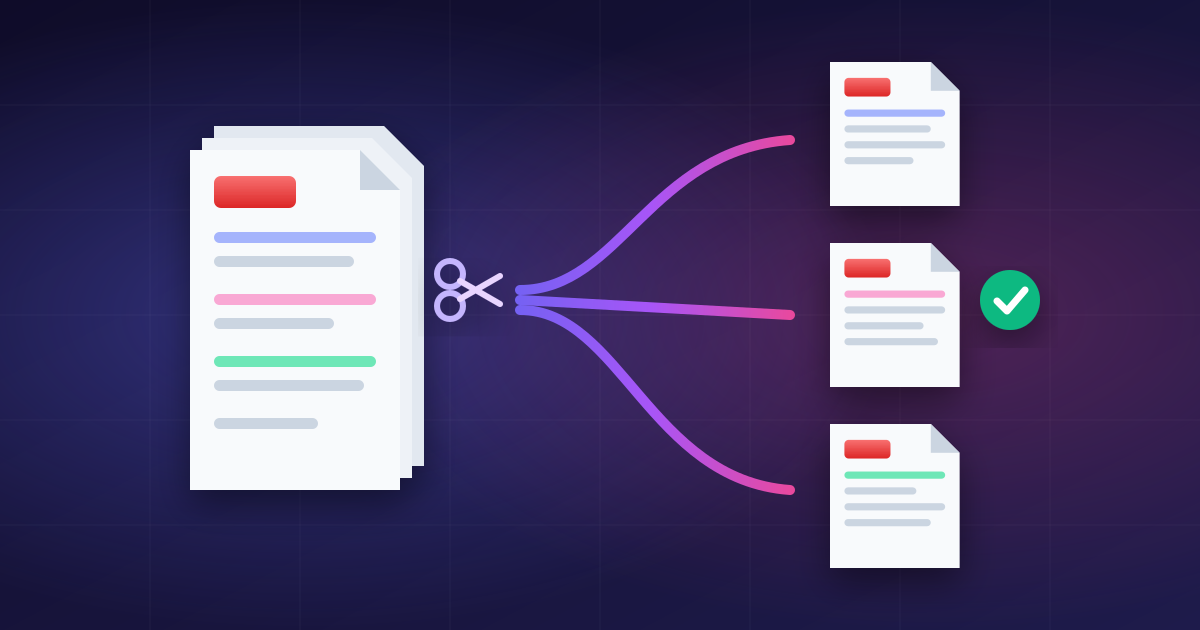
Your bank sends you a 12-page statement as one PDF. But the form you are filling in only wants page 3. Or you scanned a whole stack of papers, and now everything is stuck together in one file.
The answer is to split the PDF. You can pull out just the pages you need, or turn every page into its own file. It takes about a minute, it is free, and you don’t need to install anything. Here is how.
What does it mean to split a PDF?
Splitting a PDF means cutting one PDF into smaller PDFs. Think of a book with a removable binding. You can take out one chapter, a few pages, or every single page, and each part becomes its own neat file. Your original PDF stays exactly as it was.
How to split a PDF online (the fastest way)
This works on any computer, tablet or phone.
- 1. Open the free Utified Split PDF tool in your browser.
- 2. Click “Select PDF” and choose your file. The tool shows how many pages it has.
- 3. Pick a split mode: “Custom page ranges” to choose pages, or “Every page becomes its own PDF”.
- 4. If you chose page ranges, type the pages you want, like 3 or 1-3, 7. Each range becomes one file.
- 5. Click “Split & Download”. That’s it!
Your PDF stays on your device
The Utified Split PDF tool works inside your browser. Your file is not uploaded anywhere, so it is safe for bank statements, ID cards and other private papers.
How to write page ranges (it’s easy)
- Just one page: type 3. You get a PDF with only page 3.
- A group of pages: type 1-3. You get one PDF with pages 1, 2 and 3.
- Several separate files: type 1-3, 7, 10-12. You get three PDFs.
- When you ask for more than one file, they come in a ZIP. A ZIP is simply a folder packed into one download. Double-click it to open it.
How to split a PDF on a Mac (built-in)
Open your PDF in Preview. Click View, then Thumbnails, so you can see small pictures of each page on the side. Now drag the page you want from that side bar onto your desktop. Your Mac saves it as a new PDF with just that page. Hold the Command key to select more than one page before you drag.
How to split a PDF on Windows (no extra apps)
Windows has a handy trick using your web browser. Open the PDF in Microsoft Edge or Google Chrome. Press Ctrl + P to print. Set the printer to “Save as PDF” (or “Microsoft Print to PDF”). Under Pages, choose custom and type the pages you want, like 3-5. Click Save. You now have a new PDF with only those pages.
Split, extract or delete: which one do you need?
- Split: you want to cut a PDF into several smaller files.
- Extract: you want to keep a few pages and make one new PDF from them.
- Delete: you want to keep almost everything but remove a few pages, like a blank page.
Tips if something goes wrong
- Wrong pages came out? Check the page numbers in your PDF viewer, not the numbers printed on the paper. They are often different.
- The PDF won’t open in the tool? It may be locked with a password. Unlock it first, then split it.
- Can’t find your files? Look in your Downloads folder, and open the ZIP if you made more than one file.
- Pages in the wrong order? Rearrange them with a PDF organizer before or after you split.
- Need the parts back together later? Merge them into one PDF again.
Quick answers
Is it free to split a PDF? Yes. The Utified Split PDF tool is free, adds no watermark and doesn’t ask you to sign up.
Does splitting a PDF lower the quality? No. Splitting only separates the pages. Every page looks exactly the same as before.
How do I save just one page of a PDF? Choose “Custom page ranges” and type only that page number, like 3. You get a PDF with just that page.
Can I split a PDF on my phone? Yes. Open the Split PDF tool in your phone’s browser, choose the PDF from your phone, and download the result.
Need just a few pages from a big PDF? Split it in seconds, free and private.
Open Split PDFTry it yourself